
Getting Started with Loggerhead.app
Signing Up
Signing up couldn’t be easier — and it’s free! Just visit https://ui.loggerhead.app/register and use your email address to set up a password. You're tracking your player's stats, so choose a secure password.
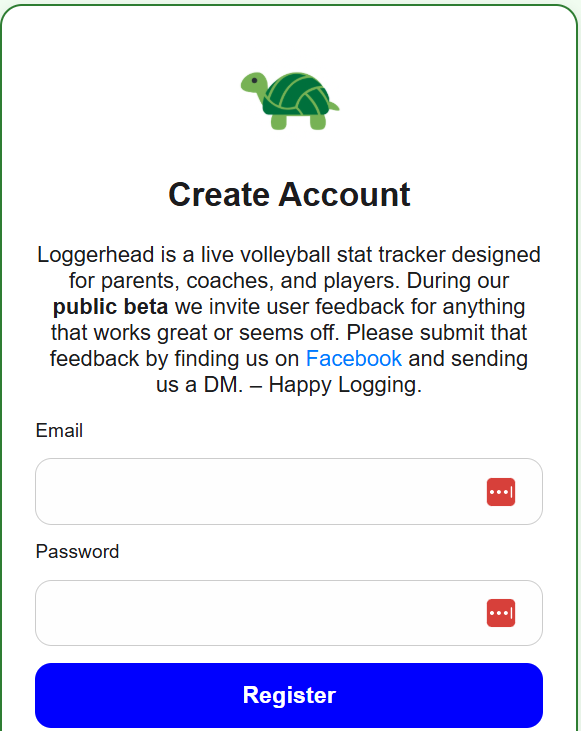
After signing up, you'll be automatically logged in and redirected to your Profile page.
Setting up your Profile
Visit your profile at https://ui.loggerhead.app/profile. This is where you:
- Enter your name and state/region
- List the teams you manage (comma-separated)
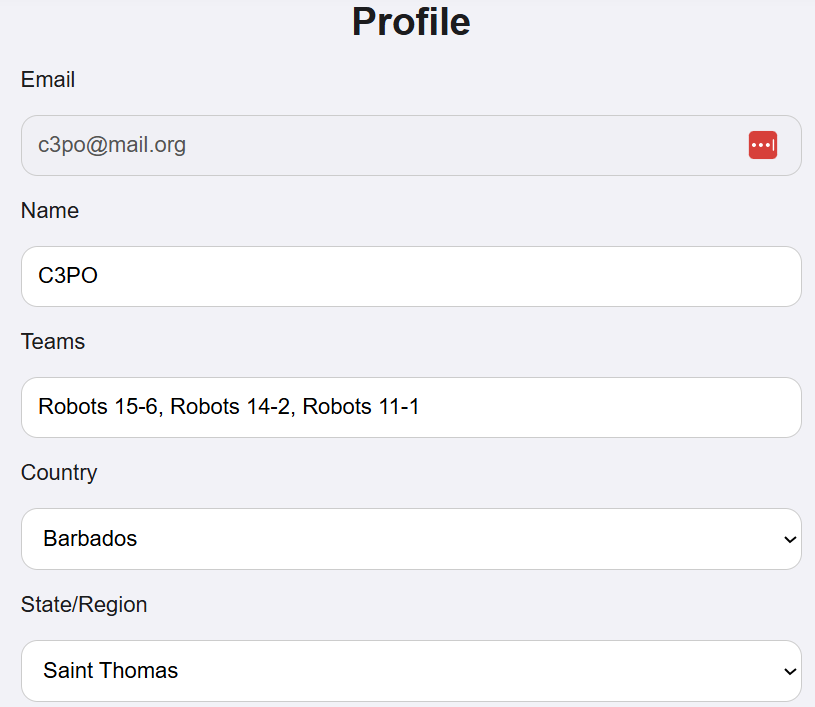
- Set email preferences
- Change your password
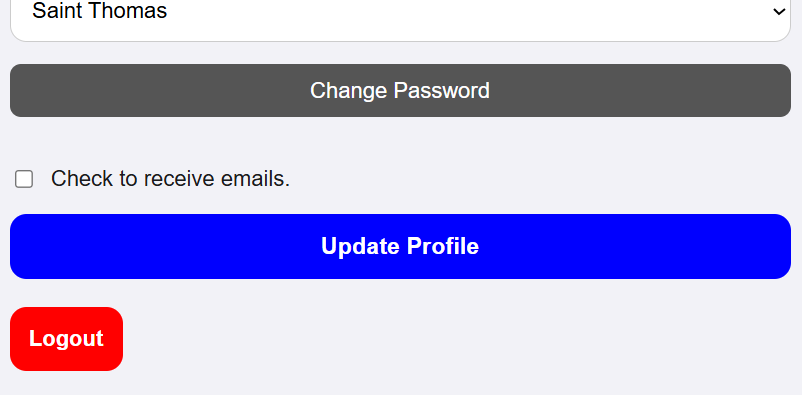
Click "Update Profile" — if successful, you're ready to continue!
Subscribing
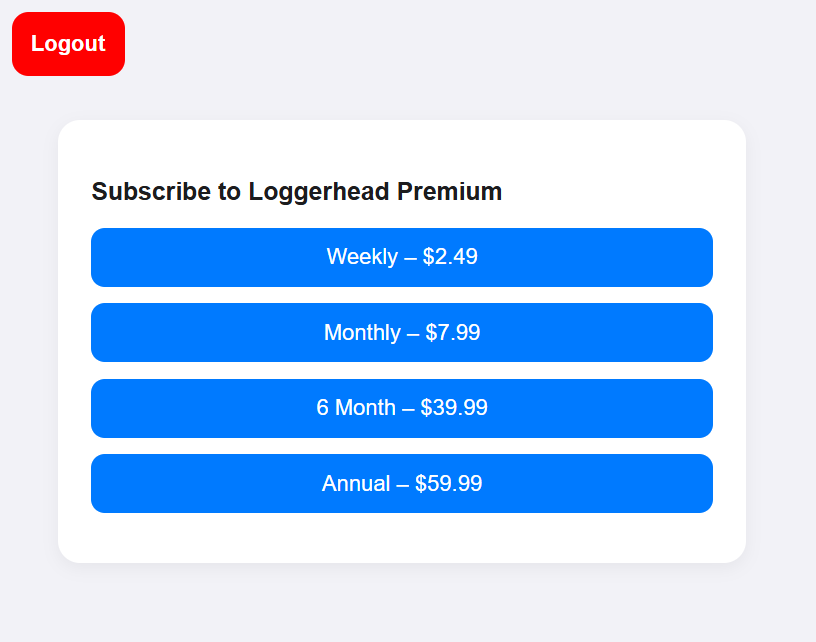
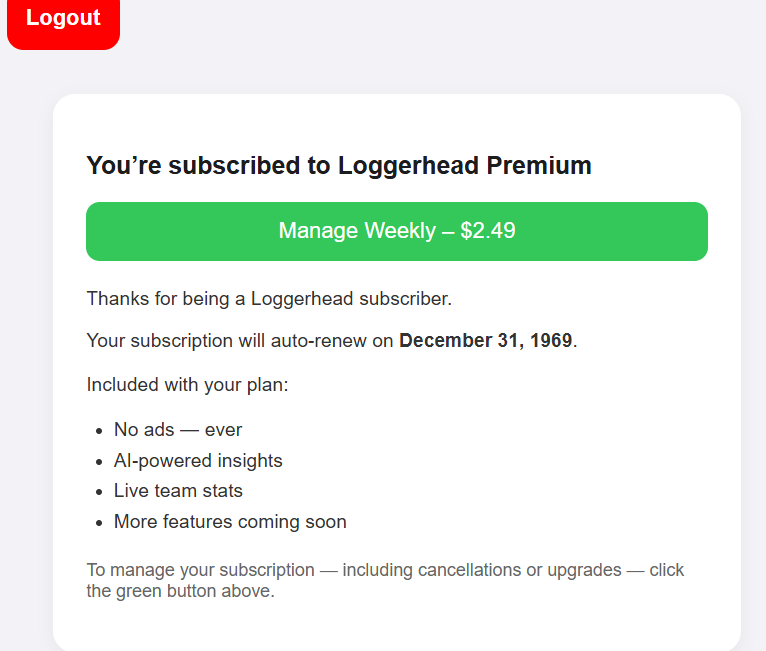
Subscriptions can be started and managed from the Profile page. You'll be redirected to our partner Stripe's secure payment portal. Subscriptions renew automatically on your anniversary unless cancelled.
Setting Up My Roster
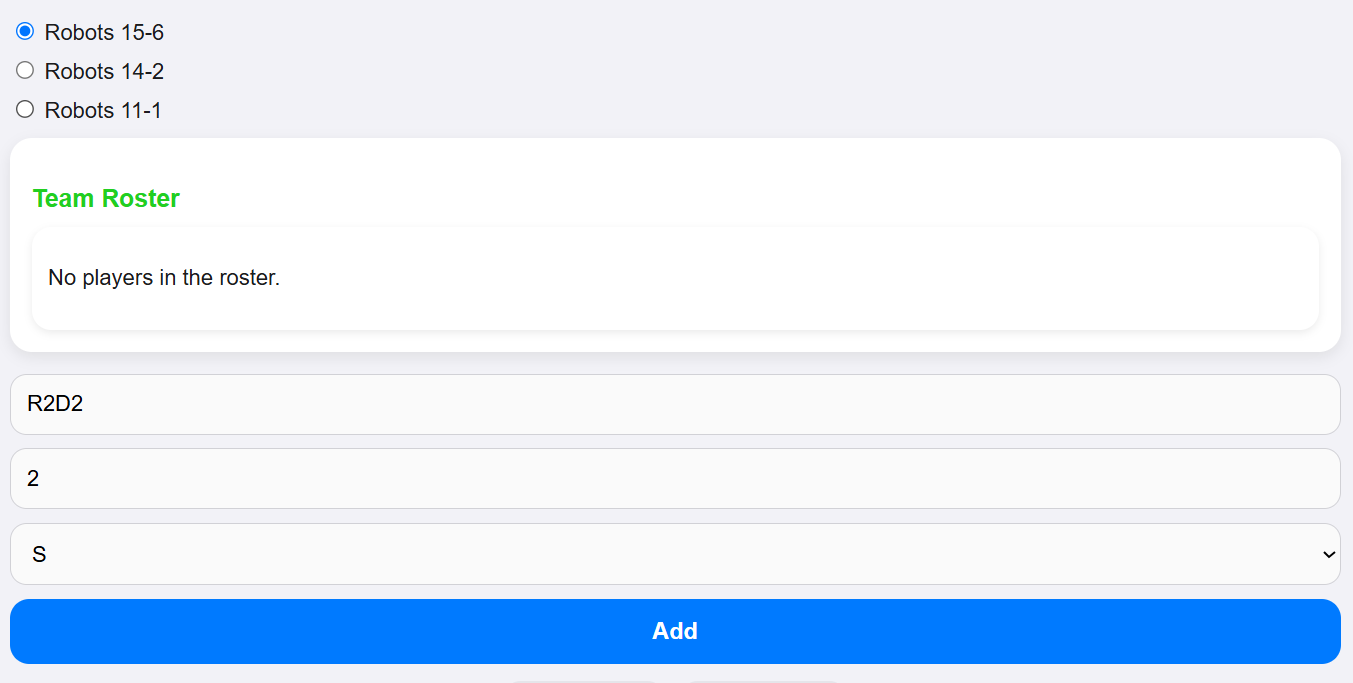
After entering your team name, go to the Settings page to add players. Each player has:
- A name
- A jersey number
- An optional position
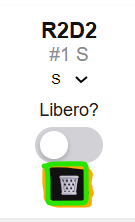
If you make a mistake, just click the trash icon to delete that player:
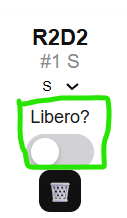
HELP! I can’t add a Libero?
You can — Loggerhead treats Libero as a toggleable role. Flip the switch for up to 2 players and they'll be marked as Libero (you can switch them back anytime).
Match Settings
After entering at least 6 non-libero players, you’re ready to configure your match. This is done from the Match Settings form.
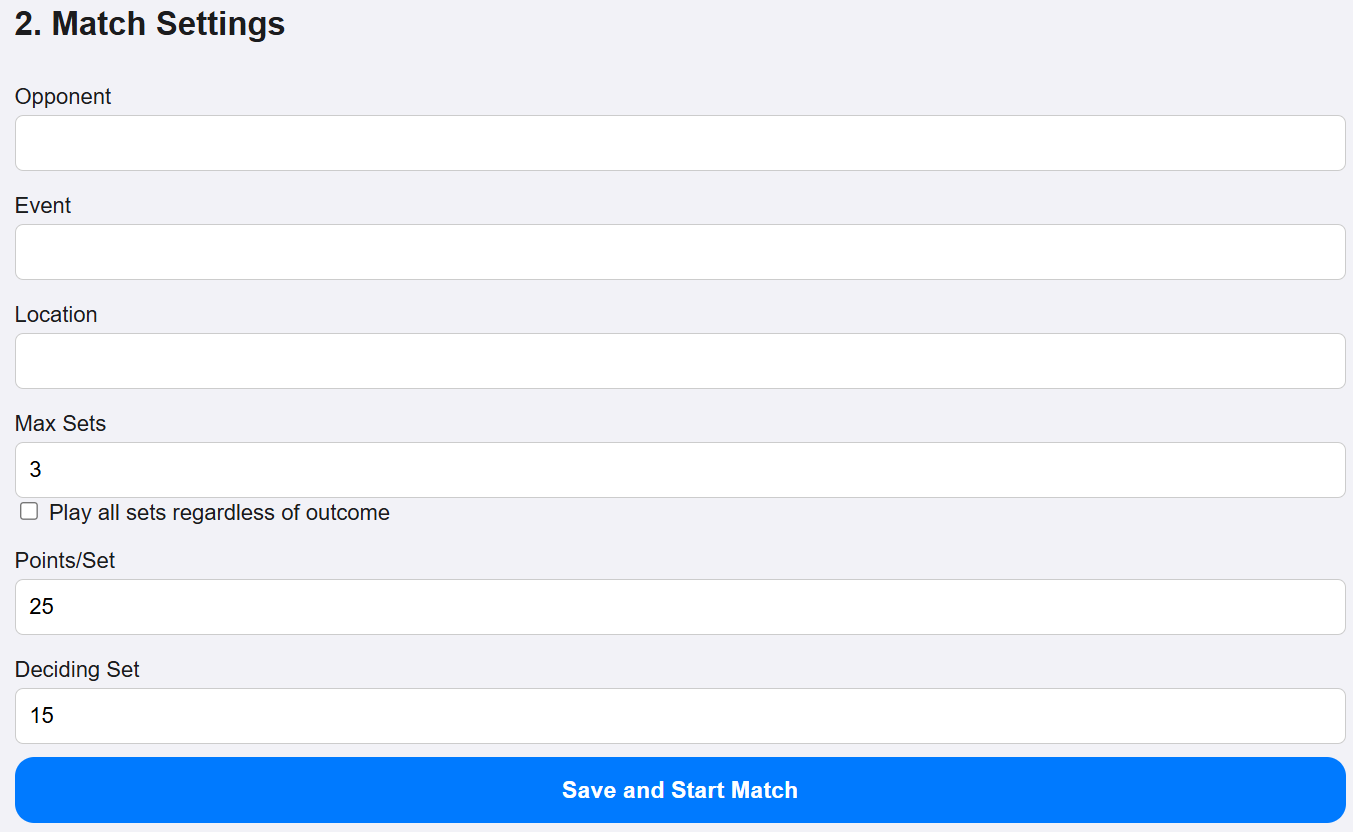
- Opponent: Enter the name of the opposing team for this match.
- Event: Optionally enter the tournament or event name (e.g., “Regional Qualifier”).
- Location: Optionally enter the venue or city where the match is taking place.
- Total Sets: The number of sets to be played in the match (e.g., 3 or 5).
- Play all sets regardless of outcome: If checked, all sets will be played to the full number of points even if the match is already decided.
- Points/Set: The number of points required to win a non-deciding set (typically 25).
- Deciding Set: The number of points required to win the final set (typically 15).
A special note about 1 set matches: If the match will be played to 15, just click Save and Start Match. If it will be played to 25, click Play all sets.
Once you’ve filled everything out, click "Save and Start Match". This will initialize the court and take you to the live match interface.
Logging the Match
Ok, so now that you have your team loaded up and your match saved and running, the fun starts.
This is the tab where you’ll spend most of your time in Loggerhead.app.
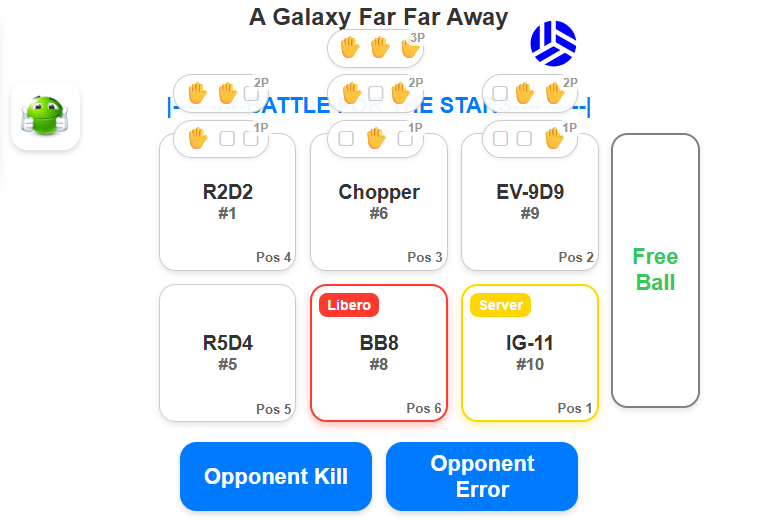
You’ll start by clicking and dragging your players from the bench into their court positions. Once you’ve moved all six players, it’s time to sub in the Libero — just like a real match. They’ll be the player with a different background color on the bench. Once the Libero is placed, Libero Tracking is automatically enabled — meaning auto substitutions and pairings are in play.
If your team is the first to serve, you're ready. If not, click the orange Switch Serve button above the court. This is a free switch that won’t rotate players. If rotation should have occurred, tap the Rotate Players button to rotate the lineup in serve order. Finally, if the lineup is completely off, use the Clear Court button to reset everything — including Libero tracking.

When Your Team is Serving
There are three green action buttons under the court:

- Service Ace: Adds 1 point to your team and keeps serve.
- Service Error: Adds 1 point to the opponent and passes serve.
- In Play: No score change — the ball moves to the other side and buttons update.
In Play Buttons
When the ball is in play across the net, two buttons appear:

If the ball doesn’t come back, tap Opponent Error. If it’s a kill, tap Opponent Kill. If the original serve was an Ace, tap Opponent Ace.
All standard scenarios are covered — including when the opponent is serving.
Tracking Touches
Click players in the order they touch the ball — up to 3 touches:



From here, it’s just see, tap, and log. Use the block icons along the top to record block attempts:
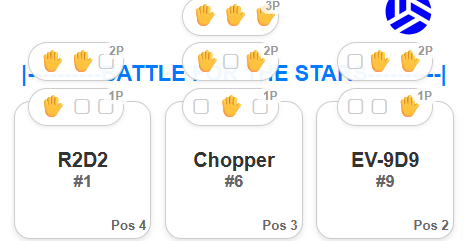
If a free ball is coming back across the net, tap Free Ball before touching the first player. If you send a free ball, tap it after touching the sender.

Keep going — and have fun! When the match ends, tap the Stats button up top for a full breakdown. Your reward for logging!
Happy Logging.
Back to FAQ